Status
WorkaroundPlatforms
- PS5
Boot the PS5 into Safe Mode and run Clear Cache and Rebuild Database. It takes a few minutes, keeps your saves, and is the step base-PS5 players credit most for steadier frame times in GTA 6.
Symptoms
- Frame rate dips well under 30 fps while driving, most often reported around the Keys and in heavy traffic.
- Hitching in busy scenes such as shootouts, forests and swamps.
- The Chapter 1 chase just before Chapter 2 is a spot many base-PS5 players single out.
Steps
- Save the game, then turn the PS5 fully off (not Rest Mode).
- Hold the power button. Let go after the second beep, about seven seconds after the first. The console starts in Safe Mode.
- Connect the controller with a USB cable and press the PS button.
- Pick "Clear Cache and Rebuild Database", then "Clear System Software Cache". The console restarts.
- Repeat the Safe Mode steps and this time pick "Rebuild Database". This can take a few minutes on a full drive.
- Start GTA 6 again. Your saves and installed games are not touched.
- If drops continue, power the console down and clean the vents. Several players found dust-clogged consoles throttling under GTA 6's load.
Good to know
- Sony describes Clear System Software Cache as the option for "system feature issues or performance drops", and Rebuild Database as a scan that builds a fresh index of everything on the drive.
- Some dips are the game itself. Digital Foundry's launch analysis found frequent small dips under 30 on the base PS5 and a low of 23 fps in heavy explosion scenes, so no console setting will make it a locked 30.
- Patch 1.002.002 does not mention performance. A few players reported new frame drops after it; there is no fix for that yet beyond the steps above.
- Turning off HDCP (Settings > System > HDMI) is another tip in the thread. One PS5 Pro owner who tried it saw no difference.
Sources
- r/GTA6: "Those of you having frame drops on base ps5, clear cache and rebuild data base!"
- PlayStation Support: Safe Mode on PS5 (cache clearing is for "performance drops")
- BGR: Common GTA 6 problems on PlayStation 5 (Nov 19, 2026)
- AltChar: GTA VI dips as low as 23fps on base PS5, Digital Foundry finds
- r/GTA6: GTA 6 Common Issues & Fixes (updated Nov 23, 2026)
Related pages
Fixes
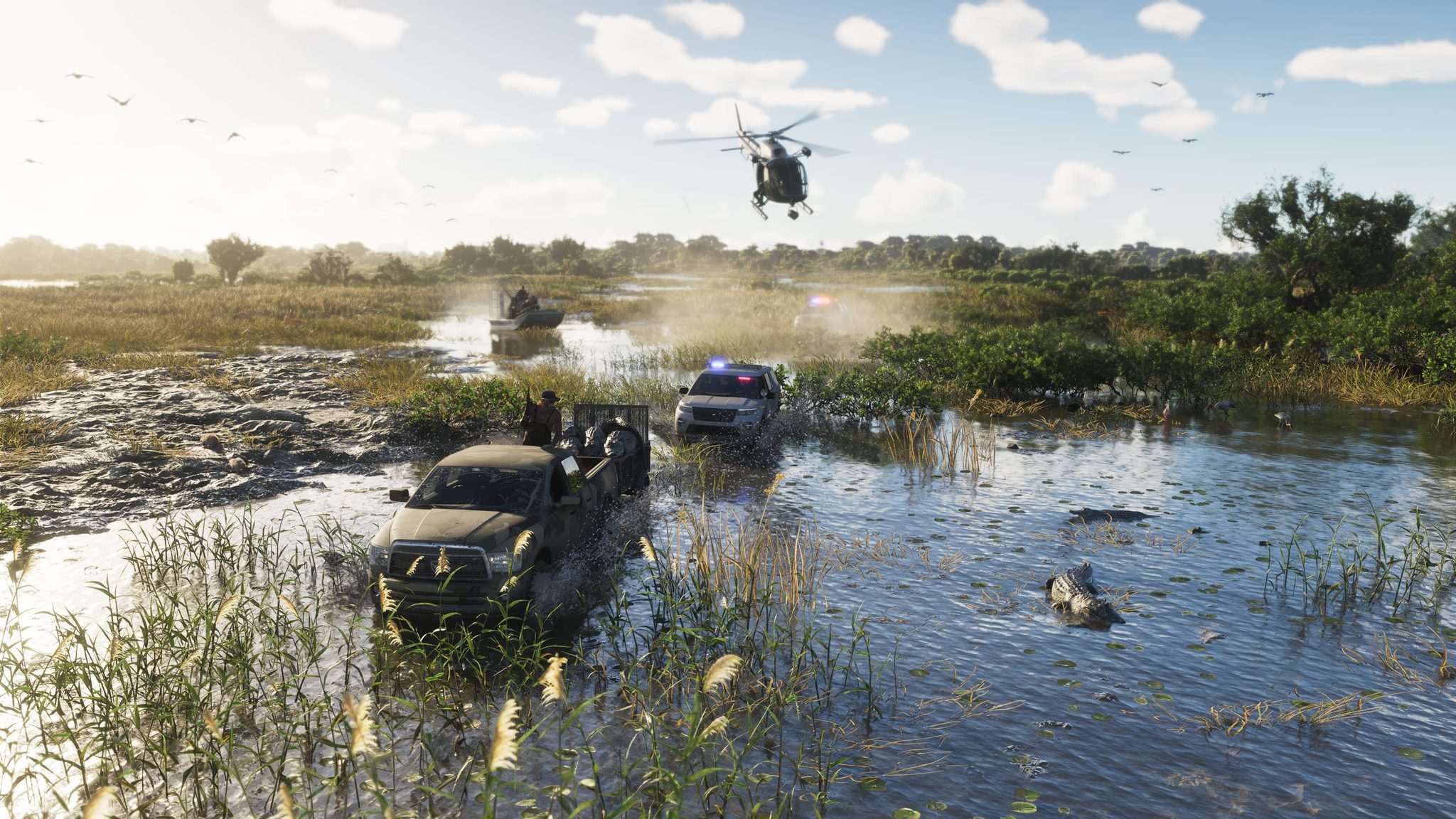
GTA 6 PS5 Frame Drops – Fixes for the Base PS5
GTA 6 PS5 frame drops? Why the base PS5 dips under 30 fps, where it happens, and the fixes that help most, starting with Safe Mode cache and database.
Fixes
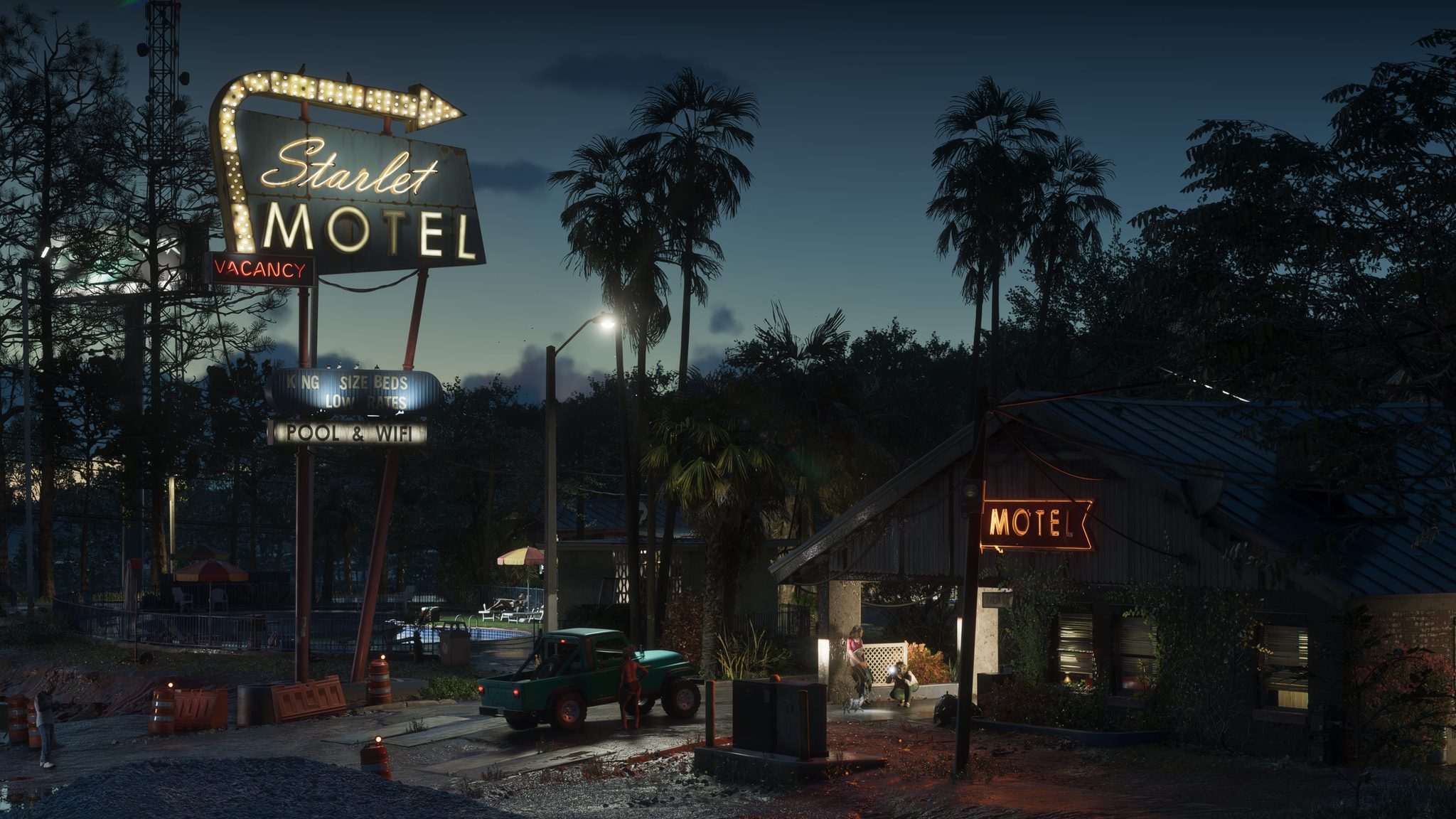
GTA 6 Crashing Fix for PS5: CE-108255-1, Safe Mode and Xbox Steps
GTA 6 crashing fix for PS5 and PS5 Pro, step by step, plus Xbox. Update to 1.002.002, restart properly, clear the cache in Safe Mode, and CE-108255-1.
Fixes
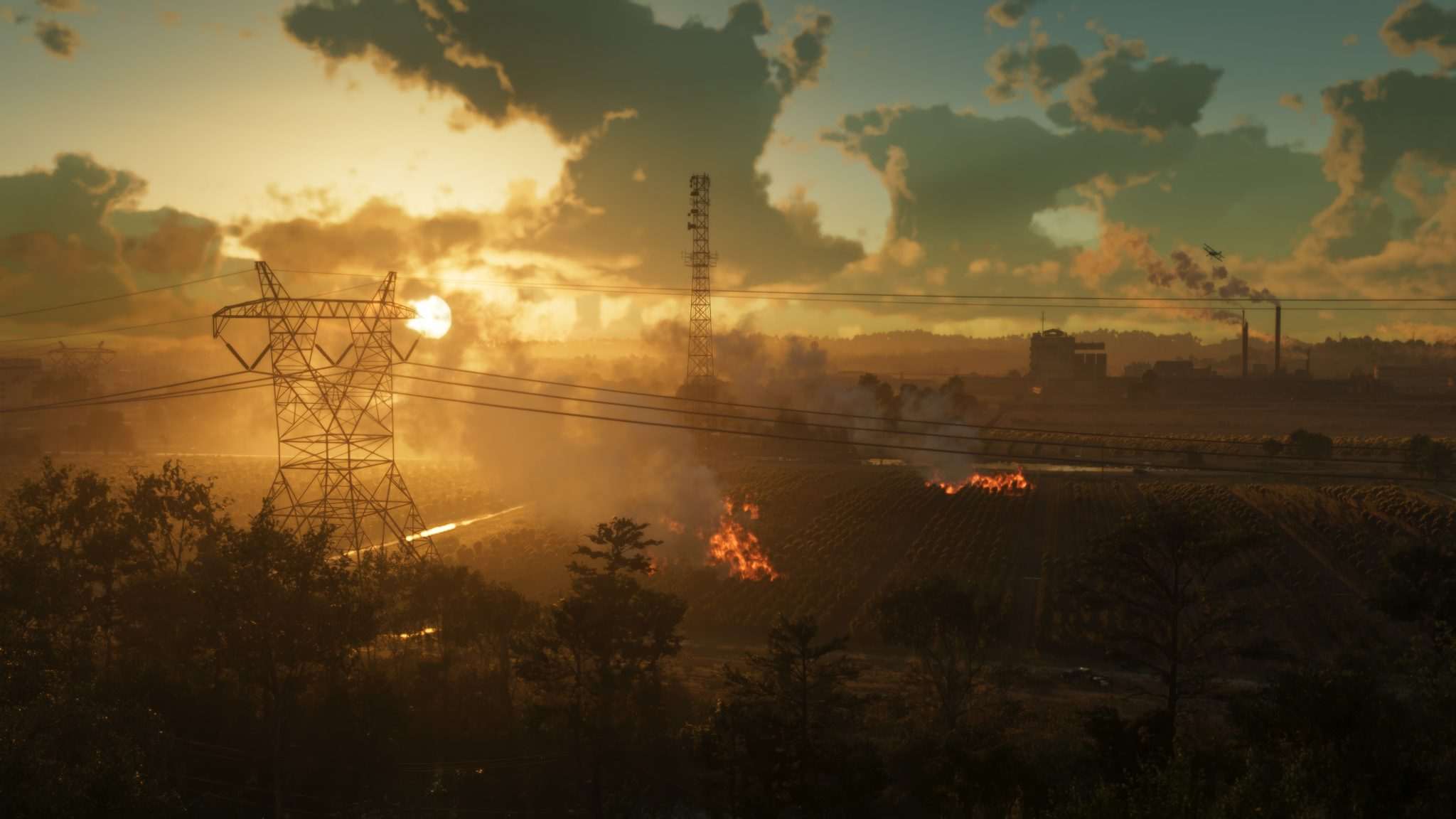
GTA 6 Weather Not Changing? Why It Never Rains, and How the Weather System Works
GTA 6 weather not changing, no rain in 30+ hours? It was a bug, patch 1.002.002 targets it, and weather is tied to chapters. How it works and what to expect.
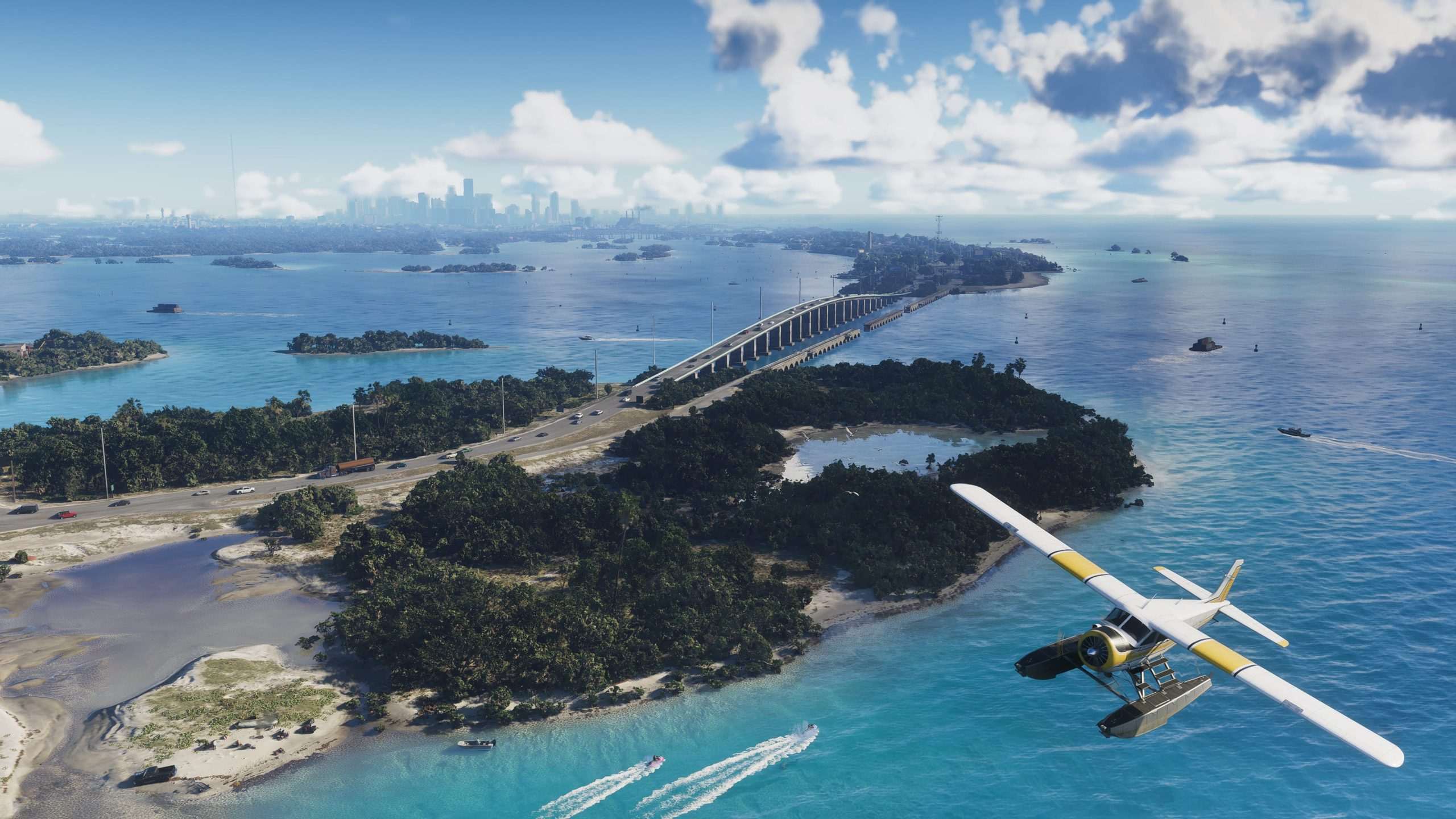
Fixes
GTA 6 blurry "Vaseline" look and soft distance detail
GTA 6 looking soft or blurry in the distance on PS5 or Xbox? Clear Quick Resume, test with HDR off, match the output resolution and lower motion blur.
Card images: official screenshots. Image: Rockstar Games.