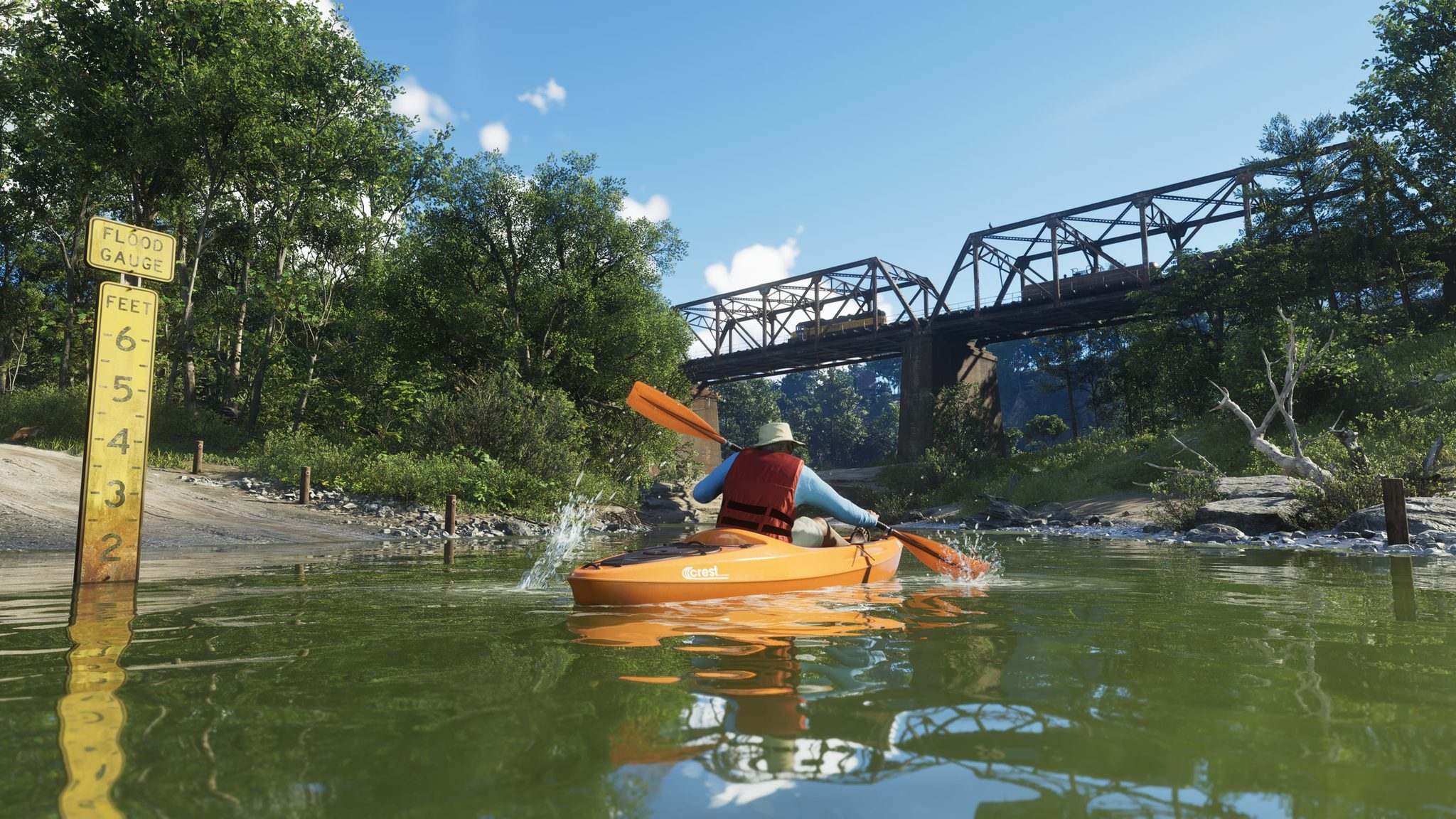
The GTA 6 settings to change first are Motion Blur Strength, HDR calibration, the aim response curve and stick deadzones, and camera shake. They take two minutes, all live under Pause menu > Settings, and the recommended values are in the table below. If you only want the best graphics settings PS5 or Xbox can offer, skip to the graphics table: motion blur low, HDR calibrated, Brightness Reduction off.
There are fewer options than PC players are used to. There is no performance or quality mode, no field-of-view slider, and no switch for the vignette, depth of field or film grain. What you can change, you should.
Best graphics settings on PS5 (and Xbox)
The best graphics settings PS5 players can use come down to a handful of options, because the console picks resolution and frame rate for you:
| Where | Setting | Best value |
|---|---|---|
| Game: Display > Visual Effects | Motion Blur Strength | 0 to 2 for clarity, 3 if 30 fps judders |
| Game: Display > Display | HDR Calibration | 2,000 / 20 / 35 on a 1,000-nit screen |
| Game: Display > Visual Effects | Brightness Reduction | Off |
| Game: Display > Visual Effects | Player Status, Hit and Awareness Effects Intensity | Default, or lower if edge effects distract you |
| Game: Display > Display | Safe Zone | Fit to your screen’s edges |
| PS5: Settings > Screen and Video | Video Output resolution | Match your screen (4K TV: 4K) |
| PS5: Settings > Screen and Video | HDR | On if your TV handles it well, off to test blur or headaches |
| Your TV | Game mode | On |
There’s no graphics mode to pick on the base PS5 or the PS5 Pro: both run one fixed 30 fps mode, and the Pro’s PSSR upscaling and ray-traced shadows are always on. On Xbox Series X|S, also set the console to 120 Hz if your TV supports it; VRR smooths dips below 30. Details on each display option: GTA 6 motion blur and depth of field and best TV settings for GTA 6.
Where the settings are
Press Start/Options and choose Settings. Rockstar splits the menu into tabs: Control Scheme, Controller, Gameplay, Display, UI, Camera, Audio and Account. Switch tabs with R1/RB. Restore Default at the bottom resets the tab you are on.
Display: motion blur and HDR
Motion Blur Strength sits in Display, under Visual Effects. It runs 0 to 10 and defaults to 3. Most players who complained of a smeary picture or eye strain set it to 0. If 30 fps feels choppy to you, keep it at 2 or 3 instead; some OLED owners go higher on purpose to hide judder.
HDR Calibration is the other must-fix. The in-game calibration screen is misleading, according to HDTVTest, which recommends:
| Setting | 1,000-nit screen or brighter | Dimmer screen |
|---|---|---|
| Max Brightness | 2,000 | Double your screen’s peak (600-nit TV: 1,200) |
| Black Levels | 20 | 20 |
| Paper White | 35 | 35, then adjust |
If the image still looks dim, turn Brightness Reduction off in the same tab. More in our HDR fix and best TV settings for GTA 6.
Controller: aim curve and deadzones
- Aim Response Curve: Standard, Linear, Precision or Aggressive. Linear is the common pick for even, predictable aim.
- Deadzone (left and right stick): 0 to 10, default 5. Drop both to 2 or 3 for quicker response. If your stick drifts, raise it one step at a time until the camera stops creeping.
- Vertical Look Sensitivity: 0 to 14, default 7.
- Vibration and Haptics Strength: 0 to 10, default 10.
The full aim setup, with sensitivity values, is in GTA 6 best aim settings.
PS5 only: the DualSense options include Adaptive Triggers Resistance, Adaptive Triggers Vibration and Adaptive Speed Limiter. Turn resistance off if the triggers tire your fingers. One player found R2 still needs a half press to fire or accelerate even with trigger effects off, so this won’t fix that. Every DualSense option is explained in GTA 6 DualSense settings.
Gameplay: targeting and assists
Under Gameplay > Combat:
- Targeting: Lock-On, Partial or Free Aim. Partial is the middle ground most guides recommend.
- Aim Assist Strength: turn it up for easier fights, or to 0 with Free Aim for a harder game.
- Shooting Assist and Drive-By Assist help in vehicles.
The Accessibility section in the same tab holds Accessible Combat and Reduced Vehicle Damage, which make the game easier without blocking trophies. See GTA 6 accessibility settings.
Camera: shake and bob
Camera > Comfort has Camera Shake (on or off), Camera Bob (1 to 10) and Weapon Sway. Turning shake off and bob down is the quickest win if the game makes you queasy. Driving camera options are in Land & Water Vehicles; see best GTA 6 driving settings.
UI and audio
- Subtitles: Off, Mission Only or On, with size, background and speaker names. Turn on speaker names; car conversations overlap a lot.
- Units: distance, weight, temperature and clock format are all separate settings.
- Audio > Setup > Vehicle Radio sets whether the radio starts on when you get in a car. Streamers should turn on Mute Licensed Music; the rest of the setup is in how to stream GTA 6 on PS5 and Xbox.
There is no in-car volume control; radio volume is only set in the Audio tab.
Sources
- Rockstar Support: How to change Grand Theft Auto VI settings
- DayOne: All in-game options in GTA 6
- Engadget: How to adjust and turn off motion blur in GTA 6
- TheGamer: GTA 6 best settings to change
- Beebom: GTA 6 best controller settings
- Dexerto: GTA 6 best controller settings
- Pure Xbox: HDR expert shares three recommended display settings for GTA 6
- r/GTA6: R2 sensitivity while driving and shooting
- IGN: GTA 6 display settings explained
- Digital Foundry: GTA 6 on PS5 vs PS5 Pro, Xbox Series X and Series S
Recommended settings
| Menu | Setting | Recommendation | Why |
|---|---|---|---|
| Display > Visual Effects | Motion Blur Strength | 0 to 3 (default 3) | Lower for a cleaner image and less eye strain; keep a little if 30 fps judder bothers you. |
| Display > Display | HDR Calibration | 2,000 / 20 / 35 | Max Brightness, Black Levels and Paper White for 1,000-nit screens. Fixes the grey, washed-out look. |
| Controller | Aim Response Curve | Linear | Stick movement maps evenly to camera speed, so small corrections are easier. |
| Controller | Left and right stick Deadzone | 2 to 3 (default 5) | The default makes small stick movements feel dead. |
| Gameplay > Combat | Targeting | Partial | Keeps some lock-on help without the camera snapping for you. |
| Camera > Comfort | Camera Shake / Camera Bob | Off / 1 to 3 | Less screen movement when running and driving; helps with motion sickness. |
| UI | Subtitles and Speaker Names | On | Dialogue in cars and crowds is easy to miss. |
| UI | Units (Distance, Weight, Temperature, Clock) | Your choice | Metric and imperial units, °C or °F, and 12 or 24-hour time are all here. |
Questions
Does GTA 6 have graphics settings on PS5 and Xbox?
Only a few. There is no performance or quality mode and no resolution option. The Display tab covers HDR calibration, motion blur, gore, flashbang and brightness reduction.
Can you turn off the vignette in GTA 6?
No. There is no vignette, depth-of-field or film-grain toggle in the settings menu.
What is the best aim response curve in GTA 6?
Linear is the most common recommendation. Precision and Aggressive suit players who want slower or faster fine aim; Standard is the default.
Do accessibility settings in GTA 6 disable trophies?
No. Accessible Combat and Reduced Vehicle Damage don't block trophies or achievements. Cheats do.
Related pages
Settings
GTA 6 Best Aim Settings for PS5 and Xbox
The GTA 6 best aim settings on PS5 and Xbox. Targeting mode, aim assist 0 to 4, aim sensitivity, response curve, deadzones and reticle, with the menu path for each.
Settings
Best GTA 6 Driving Settings (and How to Make Driving Easier)
The best GTA 6 driving settings on PS5 and Xbox: vehicle camera follow speed and delay, deadzones, adaptive triggers, Auto Drive, nitrous and radio options.
Settings
Best TV Settings for GTA 6 – HDR, Game Mode and Motion Smoothing
The best TV settings for GTA 6 on PS5 and Xbox: HDR calibration values, game mode, 120 Hz and VRR on Xbox, and motion smoothing by brand with its input lag.
Settings
Can You Make GTA 6 Kid Friendly? Age Rating, Settings and Parental Controls
Can you make GTA 6 kid friendly? Not really. It's rated M (17+). The gore settings you can lower, and the PS5 and Xbox parental controls that limit it.
Card images: official screenshots. Image: Rockstar Games.