The GTA 6 best settings are almost the same on every console, because no console has a graphics mode to choose: PS5, PS5 Pro, Xbox Series X and Series S each run one fixed 30 fps mode. What you can change is Motion Blur Strength (0 to 2), HDR calibration (2,000 / 20 / 35 on a 1,000-nit TV), aim and camera settings, and the console’s own video output, which is where PS5 and Xbox setups differ.
This page is the per-console reference: one section for each machine, then every settings area with a link to its full guide. If you have five minutes before your first session, start with the GTA 6 settings to change before you play instead, and come back here for the details.
The short version for each console
| Console | What it runs | Console settings | In-game priority |
|---|---|---|---|
| PS5 (launch or Slim) | 1440p upscaled to 4K, 30 fps | Video output matched to your TV, HDR on if your TV handles it well | Motion blur 0 to 2, HDR calibration |
| PS5 Pro | 1440p upscaled with PSSR, ray-traced shadows, 30 fps | Same as PS5; no Pro-only game option | Same as PS5; restart if water looks smeared |
| Xbox Series X | 1440p upscaled to 4K, 30 fps | 120 Hz, allow variable refresh rate, auto low latency mode | Motion blur 0 to 2, HDR calibration |
| Xbox Series S | 720p upscaled to 1080p with FSR 4, 30 fps | 120 Hz with VRR, native resolution of your screen | Motion blur 0 first, then HDR |
The resolution and frame-rate figures come from Rockstar’s own statements and Digital Foundry’s console tests; the full tables are on each platform page. There’s no 40 or 60 fps option anywhere, for the reasons in why GTA 6 is capped at 30 fps.
Best settings for PS5
On the base PS5 (and the PS5 Slim, which runs the game exactly the same way), the game picks resolution for you. The settings that matter:
- Console: Settings > Screen and Video > Video Output. Set the resolution to match your screen, and turn HDR on only if your TV shows it well. 120 Hz output doesn’t help here: PS5 VRR only works above 48 fps, so it does nothing for a 30 fps game. See does GTA 6 support 120Hz.
- In game: Motion Blur Strength 0 to 2, HDR calibrated, Brightness Reduction off. Everything else is comfort and control.
- Controller: the DualSense has its own trigger, haptics and speaker options; many players turn adaptive trigger resistance off for driving. Values in GTA 6 DualSense settings.
If frame drops bother you on the base PS5, the console-side steps in PS5 frame drops fixes are worth a look; no in-game setting changes performance.
Best settings for PS5 Pro
The PS5 Pro has no extra graphics option in GTA 6. PSSR upscaling and ray-traced shadows apply automatically, so the best PS5 Pro settings are the same in-game values as the base PS5.
Two Pro-specific notes:
- A heat-haze effect can get stuck on and smear water, sky and distant detail. Fully closing and restarting the game clears it. Details: PS5 Pro blurry water and sky.
- There’s still no 60 fps mode. Rockstar says the Pro’s CPU can’t run the simulation faster. What the Pro does better is covered in PS5 Pro vs PS5.
Best settings for Xbox Series X
On Xbox the console settings are where the gains are:
- Settings > General > TV & display options: refresh rate 120 Hz if your TV has HDMI 2.1, and Allow variable refresh rate on. The game still renders 30 fps, but Xbox’s VRR with low frame-rate compensation makes dips below 30 look smoother.
- Video modes: Allow auto low latency mode on, so the TV switches to game mode.
- Quick Resume: it can glitch the frame rate and speed the game up. If that happens, quit the game fully. See does GTA 6 have Quick Resume.
In game, use the same motion blur and HDR values as PlayStation. The Series X runs the same resolution and ray tracing as the base PS5; the comparison is in PS5 vs Xbox Series X.
Best settings for Xbox Series S
The Series S renders at 720p and upscales to 1080p with AMD FSR 4, so softness is part of the picture. The order that helps most:
- Motion Blur Strength to 0. Series S players credit it most for a clearer image.
- 120 Hz and VRR on a compatible screen, same as Series X.
- Set the console’s resolution to your screen’s native resolution, and keep your TV’s sharpness at its neutral value.
- HDR calibration, as above.
The full Series S setup, including what to expect in big fights, is in GTA 6 Series S settings and Xbox Series S performance.
Graphics and display settings
GTA 6’s Display tab has no resolution, frame-rate or quality options. What’s there: HDR and brightness calibration, Safe Zone, Motion Blur Strength, effect intensity sliders (player status, hit and awareness), blood and gore, dismemberment, flashbang brightness and high-contrast shaders.
- Motion blur and depth of field: GTA 6 motion blur and depth of field. Depth of field can’t be switched off.
- HDR by TV brand (LG, Samsung, Sony, HGiG): GTA 6 HDR settings.
- The dark screen edges: there’s no vignette toggle; the effect sliders tone down the situational edge effects, not the constant shading. See GTA 6 vignette.
- Your TV: game mode on, motion smoothing only if your TV allows it in game mode. See best TV settings for GTA 6.
Aim, camera and driving settings
| Area | Best starting point | Full guide |
|---|---|---|
| Aiming | Targeting Partial, Aim Assist 4, Linear curve, right-stick deadzone 2 | Best aim settings |
| Camera | On-foot height Medium, vehicle height High, camera shake Off | Best camera settings |
| Driving | Driver follow delay 2, left-stick deadzone 2 to 3, Drive-By Assist On | Best driving settings |
| Difficulty | Accessible Combat and Reduced Vehicle Damage if you want an easier ride; they don’t block trophies | Difficulty settings |
These values come from the most common recommendations in published guides, including Dexerto’s full settings list. They’re starting points: aim sensitivity in particular is personal.
HUD, audio and subtitles
- HUD: a Dynamic minimap and compass keep the screen clean without losing navigation. Everything you can hide is in GTA 6 HUD settings.
- Audio: there’s no in-car radio volume, only the settings menu. Mix advice for hearing dialogue over music: GTA 6 audio settings.
- Subtitles: all dialogue with speaker names on. Some lines don’t match what’s said; see GTA 6 subtitles.
- Language: GTA 6 language options.
Comfort and accessibility
If the game gives you headaches or motion sickness, lower motion blur and camera shake first, then work through GTA 6 eye strain settings. The full list of assists, hold-to-tap options and visual aids is in GTA 6 accessibility settings, and family setups are in can you make GTA 6 kid friendly.
Sources
- Dexerto: Best GTA 6 console settings for PS5 and Xbox
- Digital Foundry: GTA 6 on PS5 vs PS5 Pro, Xbox Series X and Series S
- Wccftech: Rockstar on resolution and upscaling per console (Nov 18, 2026)
- Kotaku: GTA 6 won’t get a 60 fps mode, even on PS5 Pro
- GTA BOOM: No, GTA 6 does not run at 120 fps on Xbox (VRR ranges)
- Red Bull: GTA 6 best settings on PS5 and Xbox
Recommended settings
| Menu | Setting | Recommendation | Why |
|---|---|---|---|
| Display > Visual Effects | Motion Blur Strength | 0 to 2 (default 3) | The single biggest clarity gain on every console, and the top fix on Series S. Go back up to 3 if 30 fps panning judders. |
| Display > Display | HDR Calibration (Max Brightness / Black Levels / Paper White) | 2,000 / 20 / 35 on a 1,000-nit screen | The default calibration looks grey. On a dimmer screen, set Max Brightness to about twice the screen's peak. |
| Display > Visual Effects | Brightness Reduction | Off | Keeps the image from dimming further than your calibration. |
| Gameplay > Combat | Targeting / Aim Assist Strength | Partial / 4 | The most common aim setup in guides; lock-on helps without the camera snapping for you. |
| Controller | Aim Response Curve and stick Deadzone | Linear, deadzone 2 to 3 (default 5) | Small stick corrections register instead of feeling dead. |
| Camera > Land & Water Vehicles | Height (All Vehicles) / Follow Delay (Driver) | High / 2 | A higher, quicker camera shows more of the road at 30 fps. |
| Camera > Comfort | Camera Shake / Camera Bob | Off / 0 to 3 | Less screen movement when running and driving; helps with motion sickness. |
| UI > Navigation | Minimap | Dynamic | The map shows when you need it and gets out of the way otherwise. |
| UI > Subtitles & Captions | Subtitles / Speaker Names | All dialogue / On | Dialogue in cars and crowds is easy to miss, and the radio talks over it. |
Questions
What are the best graphics settings for GTA 6 on PS5?
There is no graphics mode to pick. The settings that change the picture are Motion Blur Strength (0 to 2), HDR calibration (2,000 / 20 / 35 on a 1,000-nit TV) and Brightness Reduction (off), plus your TV's game mode.
What are the best GTA 6 settings for PS5 Pro?
The same in-game settings as the base PS5. The Pro has no extra option; its PSSR upscaling and ray-traced shadows are always on. If water or sky look smeared, restart the game, which clears a stuck heat-haze effect.
What are the best GTA 6 settings for Xbox Series X?
Set the console to 120 Hz with variable refresh rate allowed if your TV supports it, then lower motion blur and calibrate HDR. 120 Hz VRR doesn't raise the frame rate but makes dips below 30 look smoother.
What is the best setting for Xbox Series S?
Motion Blur Strength at 0. Series S renders at 720p and upscales to 1080p, so removing blur is the biggest visible improvement. Use 120 Hz with VRR on a compatible screen.
Does GTA 6 have a performance mode on any console?
No. PS5, PS5 Pro, Xbox Series X and Series S each run one fixed mode at 30 fps. No setting changes resolution or frame rate.
Related pages
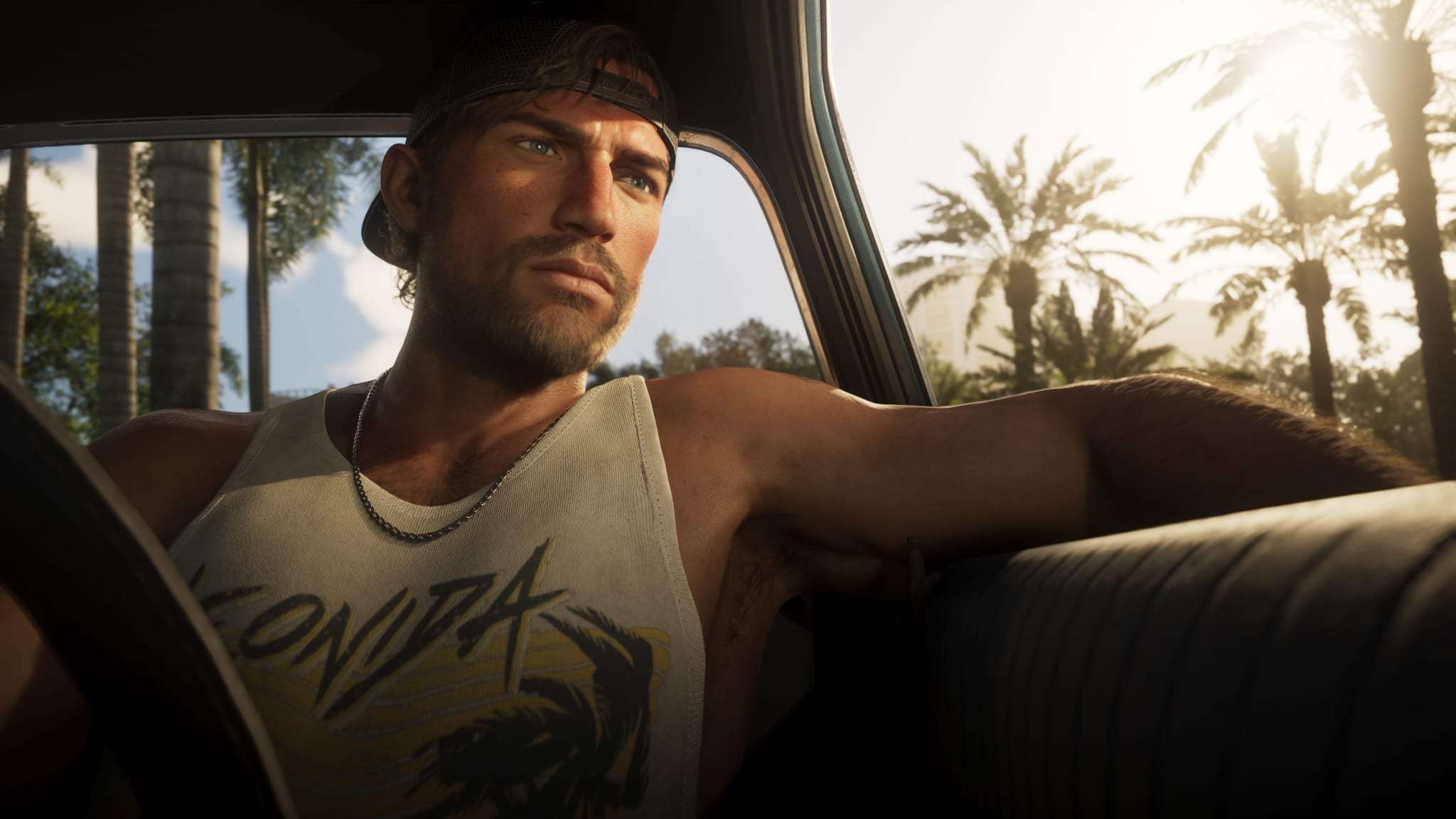
Frame rate
Does GTA 6 Run at 60 FPS? Every Console, Every Mode
Does GTA 6 run at 60 fps? No. PS5, PS5 Pro, Xbox Series X and Series S all target 30 fps with no performance mode. Real-world fps on each console.
Frame rate
GTA 6 Loading Times on PS5, PS5 Pro and Xbox Series X|S
GTA 6 loading times are about 41 to 44 seconds from the dashboard on Xbox and PS5 Pro, a bit longer on base PS5. Quick Resume and Rest Mode cut it to 6 to 21 s.
Frame rate
GTA 6 Setup Price: What a Console, the Game and Extras Cost in Total
GTA 6 setup price in the US: about $579 on Xbox Series S, $680 on PS5 Digital and $980 on PS5 Pro with the game. Every console total, editions and storage.
Frame rate
GTA 6 Performance vs Quality Mode – What Each Console Offers
GTA 6 performance vs quality mode explained. There is neither on PS5, PS5 Pro or Xbox. Each console has one fixed 30 fps mode; here's what it looks like.
Card images: official screenshots. Image: Rockstar Games.